
Map Excel location data with BatchGeo
Many people and organizations rely on Excel documents to store location data, including addresses, zip codes, cities, and states. BatchGeo makes it easy to Map Excel location data with BatchGeo by converting your Excel (XLS) spreadsheet data into an interactive map. As an excel to map converter and online mapping software, BatchGeo functions as an easy map maker and custom mapping tool online, helping you easily create a map from an Excel spreadsheet in just minutes.
Whether you're mapping your company's prospects, creating Maps from Spreadsheets for internal planning, or visualizing a family holiday card list, BatchGeo helps you quickly turn spreadsheet data into meaningful maps. Upload Excel documents to store location data, explore each location by clicking map markers to reveal additional details, and Map Store Locations or territories with ease.
Get StartedCreate an Excel map
It's easy to put your spreadsheet data on a map with BatchGeo. While Excel is the most common application, the same process also works with Numbers and Google Docs. BatchGeo's online mapping software functions as an easy map maker and custom mapping tool online, allowing you to easily create a map through a simple map from Excel spreadsheet workflow. With BatchGeo, you can group data by spreadsheet columns, giving viewers the ability to filter and display specific subsets, making it a powerful and flexible solution for turning spreadsheets into clear, shareable maps.
Only one column needs to contain location data. For example, you might only have zip codes or city names, or you could have a complete address. The more data you have the better.
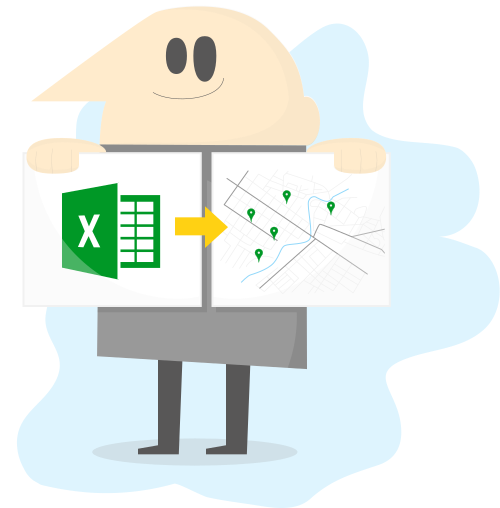
To get started, follow these steps:
- Open your spreadsheet
- Select (Ctrl+A or Cmd+A) and copy (Ctrl+C or Cmd+C) all your data
- Open your web browser and go to batchgeo.com
- Click on the location data box with the example data in it, then paste (Ctrl+V or Cmd+V) your own data
- Check to make sure you have the proper location data columns available by clicking "Validate and Set Options"
- Select the proper location column from each drop down
- Click "Make Map" and watch as the geocoder performs its process
Once all of your rows are geocoded, click “Save & Continue” and enter some details about your map. Provide a title and, optionally, a description. To claim the map as your own, which allows you to edit it later, include your email address.
Now click “Save Map” and you'll be directed to your map's unique page.
Watch these short videos
For more information on how to create a map using Excel spreadsheet data, watch our short videos.
5 Ways To Make Your Map Stand Out
Make your BatchGeo maps stand out with these 5 simple tips! In this tutorial, we'll show you how to make your maps more interactive, informative, and visually engaging so your data tells a story that stands out.
Calculate Distances Between Locations
How to Map Latitude and Longitude
Turn a simple list of coordinates into an interactive map, no coding required! Turn Excel spreadsheet data into a Google Map.
Choropleth Style Boundary Maps
Create stunning choropleth style maps, also known as boundary maps, directly from your spreadsheet data using BatchGeo.
Share your map
There are a handful of ways to share the map you've just created. For starters, you can simply copy the URL from the location bar in your web browser. Highlight and copy (Ctrl+C or Cmd+C) the address, which will start with batchgeo.com/map/. You can then paste (Ctrl+V or Cmd+V) the URL into an email, an instant message, a tweet, or anywhere else you want to share it.
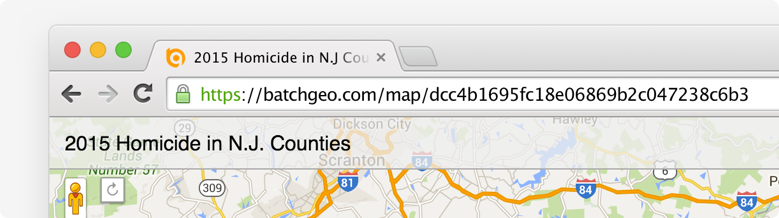
You can also embed the map into a web page, such as a blog post. BatchGeo supports both full interactive map embeds, as well as a simple badge, which provides a quick preview of your map and a link to the full map. You can retrieve the code for each of these embedded maps when you edit a map or in the email you receive when you provide an email address as you save your map.
Lastly, you can view in Google Earth using the KML file version of your map. Anyone using Google Earth can load this file to see your map's locations in the 3D browser.
Frequently Asked Questions
How do I create a map from an Excel spreadsheet?
Open your spreadsheet in Excel, select all your data (Ctrl+A), copy it (Ctrl+C), go to batchgeo.com, paste it into the data box (Ctrl+V), and click "Map Now." BatchGeo automatically detects location columns and geocodes your addresses into an interactive map.
What columns does my Excel file need?
At minimum, one column with location data such as addresses, city names, zip codes, or coordinates. Additional columns like names, categories, prices, or dates will appear in marker popups and can be used for color-coded grouping and filtering.
Does BatchGeo work with Google Sheets and other spreadsheet programs?
Yes. BatchGeo works with any spreadsheet software that supports copy and paste, including Google Sheets, Apple Numbers, LibreOffice Calc, and CSV files. The process is the same: select, copy, and paste your data into BatchGeo.
Can I upload an Excel file directly or do I have to copy-paste?
BatchGeo's primary method is copy-paste, which works with any spreadsheet format and avoids file compatibility issues. Pro users can also drag and drop Excel (XLS/XLSX) files directly into the BatchGeo tool for faster importing.
How do I update my map when my Excel data changes?
Use the edit link sent to your email when you saved the map. Open the Edit Map Data section, paste your updated spreadsheet data (including all rows and headers), and save. The map updates instantly. See our editing guide for details.